Introduction
The application allows you submitting a real GDPR requests to export, update or delete a subject data. GDPR Requests usually take a few hours or more. If you want to quickly demo the app but you don’t want to wait until the real request is complete you can select an option to not use real API calls. There is also an option to simulate a full GDPR process. The simulation can place an interaction in your organization, create an external contact and then submit a GDPR request for generated data. All steps will be described on a final report.
Main screen
The main screen allows you to manage requests and simulations (demos).

Controls
- Button Create - opens the 'create a new demo' pop-up.
- Dates range - filters items based on selected dates range.
- Button Reload - reloads the data from the server.
-
Table view - displays a list of your requests or simulations:
- Name - shows the name of your request or simulation.
- Status - shows the current item status.
- Created - shows when the item was created.
- Started - shows when the item was started.
Create a new demo pop-up
The 'create a new demo' pop-up allows you to create a new request or simulation.
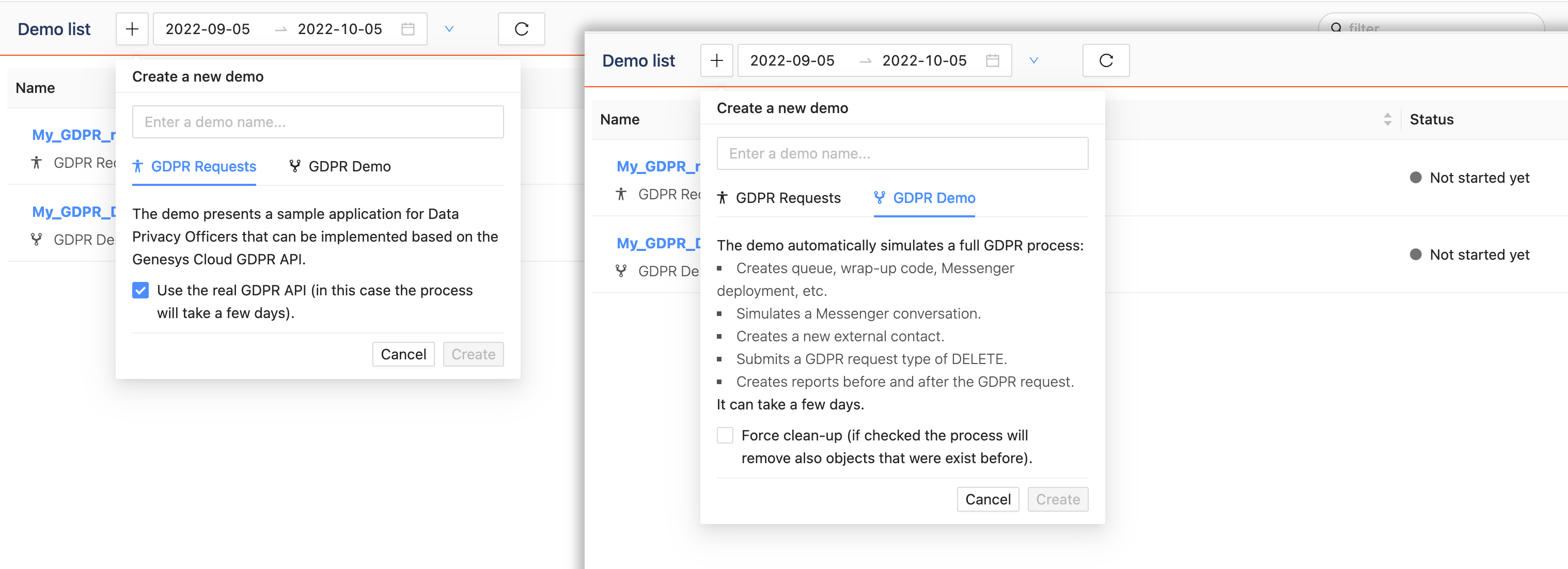
Controls
- GDPR Request - creates a new GDPR request.
- GDPR Demo - creates a new GDPR simulation.
GDPR Request view
The view allows you to submit a GDPR request, monitor its execution and see an outcome.
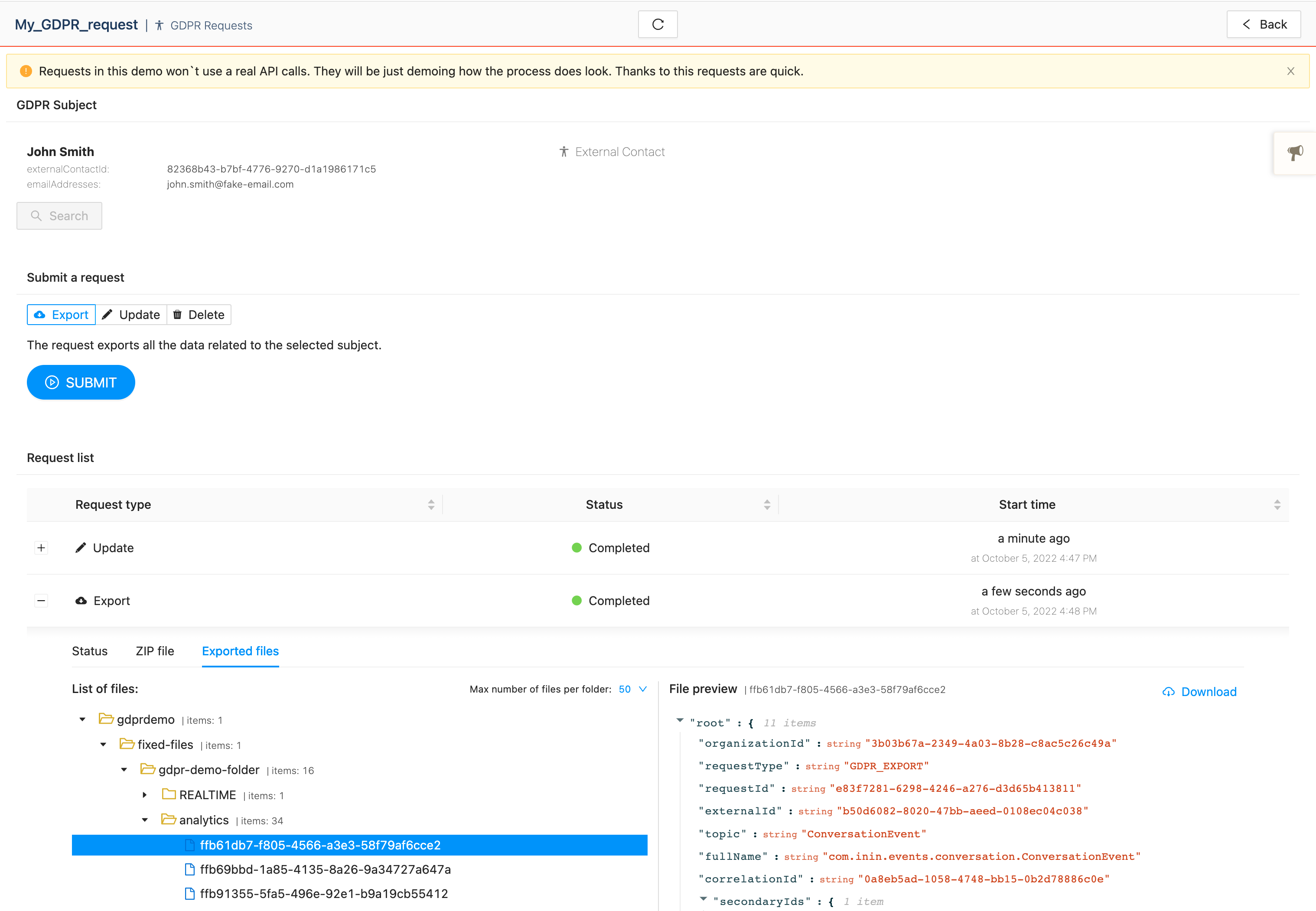
Controls
- Button Serach - opens the search modal window that allows you to find a GDPR subject.
- GDPR Subject - displays details about picked subject.
-
Submit a request - allows submitting a new GDPR request.
- Export - a request for exporting all data related to selected subject.
- Update - a request for updating the data of selected subject.
- Delete - a request for deleting all data related to selected subject.
- Request list - shows details of submitted requests.
GDPR Demo view
The view allows you to run a GDPR simulation, monitor its execution and see an outcome.
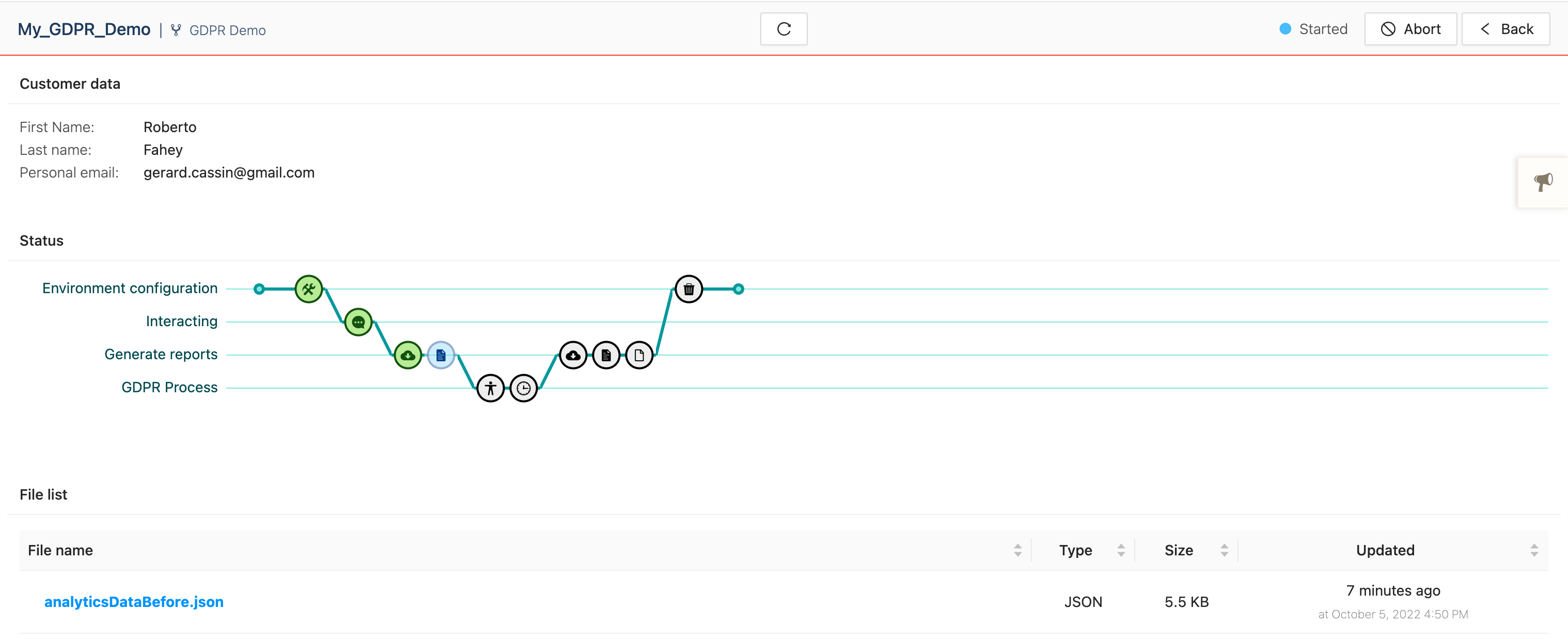
Controls
- Customer data - randomly generated sample customer data.
- Button Start - starts the simulation.
- Button Abort - stops the simulation.
- Button Back - navigates to the main screen.
- Status - a graph showing all steps of the simulation.
- File list - shows a list of files generated during simulation.
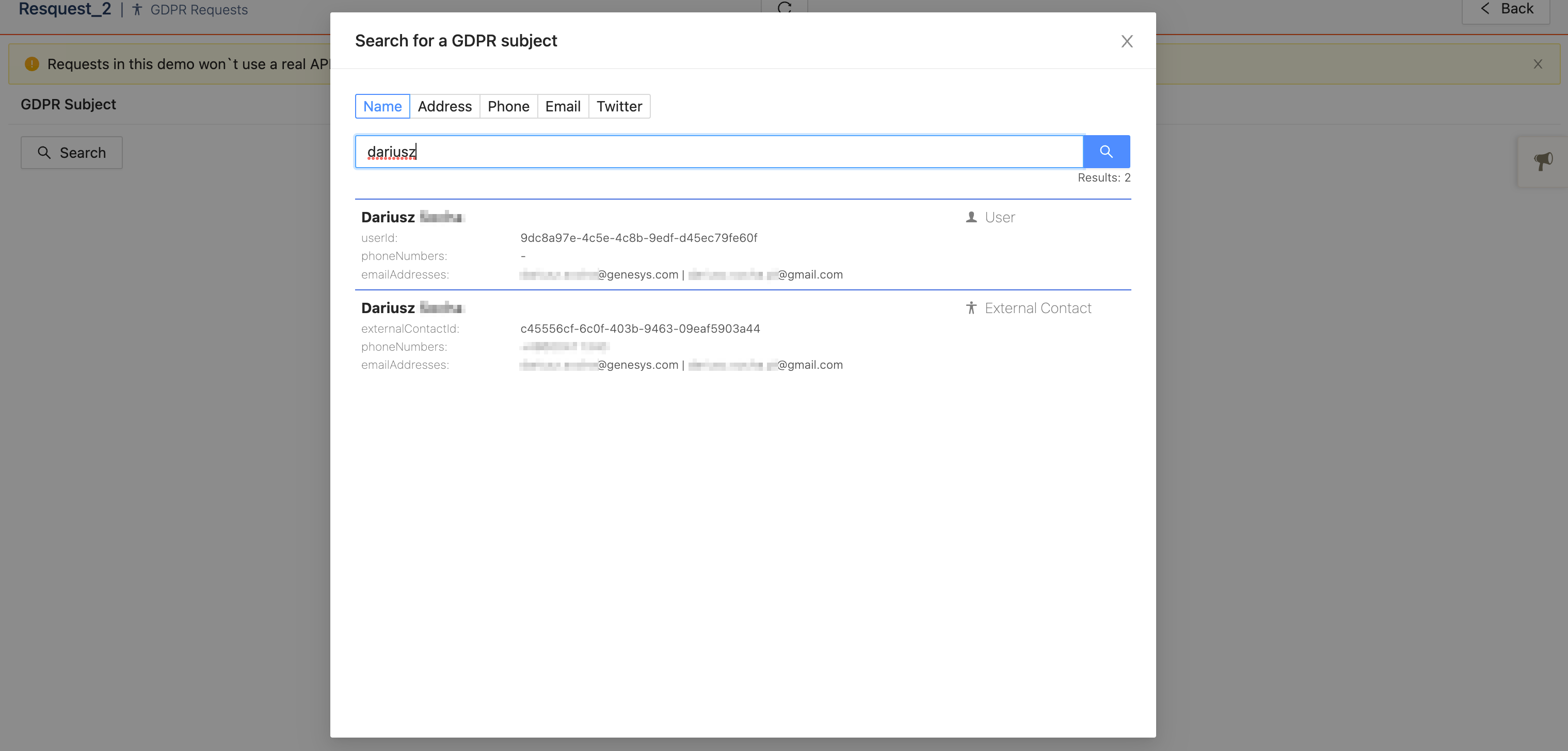
Search modal window
The serach modal window allows you to search through the organisation data for a GDPR subject.